

Table of Contents
- Why Reliable Tech for Non-Experts Matters
- Digital Literacy and Tech Adaptability: Building Your Foundation
- Easy to Use Smart Home Devices That Work Out of the Box
- How to Set Up Smart Home Devices Without Technical Skills
- Best Tech Gifts for Non-Tech Adults: What Actually Gets Used
- Cybersecurity Awareness and Data Privacy for Everyday Users
- Troubleshooting Basics: What to Do When Tech Fails
- Hardware Reliability and Peripheral Selection
Last Updated: August 21, 2026
Why Reliable Tech for Non-Experts Matters
Tech anxiety stems from fear of breaking something expensive with one wrong click. Reliable tech for non-experts removes this friction by working predictably without constant troubleshooting. At Gadgetry, we curate products designed with this principle: tech that solves real problems without creating new ones.
Digital literacy and tech adaptability have become workplace essentials. You don't need to become a programmer, but you do need confidence that your tools will work when needed. Smart home devices, wearables, and connected gadgets are practical solutions that busy professionals and homeowners rely on daily. When they work smoothly, life becomes measurably simpler.
Digital Literacy and Tech Adaptability: Building Your Foundation
Understanding tech doesn't mean memorising technical specs. It means knowing what questions to ask before you buy and recognising patterns when things go wrong. Most people think they need to become tech-savvy overnight. What actually matters is developing a troubleshooting mindset: identifying when something isn't working and having a framework for solving it.
Tech adaptability rests on three pillars: understanding how devices connect, recognising common failure points, and knowing when to ask for help. You don't need to understand WiFi at a physics level, but you should know that checking WiFi settings is a reasonable first troubleshooting step.
Building tech fluency is incremental. Each time you solve a small problem, finding a setting, updating an app, resetting a connection, you add to your mental model of how these systems work.
Easy to Use Smart Home Devices That Work Out of the Box
What Makes a Smart Home Device Reliable
A reliable smart home device connects without fussing, performs its intended function reliably, and integrates with other devices without conflicts. Too many products fail on the first point alone, connecting once then dropping connection repeatedly.
The best devices come with clear setup instructions, responsive customer support, and a track record of firmware updates that fix bugs. They also have physical fallbacks, meaning they still work if the app crashes or internet goes down. A smart thermostat that maintains your last temperature setting if connectivity drops is more reliable than one that stops working entirely.
Look for devices using established standards like Bluetooth 5.0 or WiFi 6, not proprietary systems that lock you into one manufacturer's ecosystem (bluetooth.com). This ensures your new device plays nicely with devices you already own.
Practical Setup Without Technical Skills
Smart home setup intimidates people unnecessarily. The process is usually simpler than it looks:
- Unbox and charge, Most devices need a full charge. Plug in and wait 30 minutes to an hour.
- Download the app, Scan the QR code in the box or search the manufacturer's app in your phone's app store.
- Create an account, Use an email and password you'll remember.
- Add the device, The app guides you through WiFi connection. Select your network and enter your WiFi password (case-sensitive).
- Test basic functions, Toggle the device on and off through the app to confirm it's responding.
- Integrate with other systems, Link to Alexa or Google Home for voice control (optional).
Setup takes 10-15 minutes for most devices. If it's taking longer, you've likely hit a WiFi connection issue. Try moving the device closer to your router or restart both the device and router.
How to Set Up Smart Home Devices Without Technical Skills
People assume they'll break something, so they move slowly and second-guess themselves. In reality, smart home devices are built to be resilient. You can't accidentally damage them by tapping the wrong button in an app.
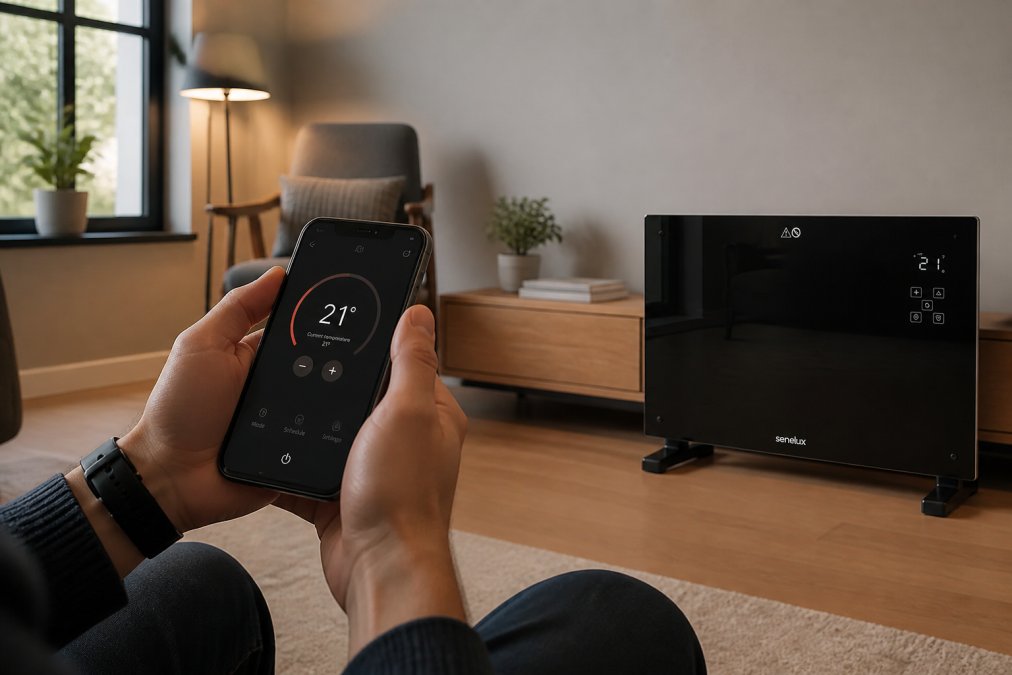
Start with one device. The Black Glass Panel Heater with WiFi Controls from Gadgetry (£105.59) is an excellent entry point, straightforward to set up, works independently if the app fails, and gives you practical experience without high stakes.

Common setup problems and fixes:
- Device won't connect to WiFi, Move it closer to your router. Restart the device and router. Confirm you're entering your WiFi password correctly.
- App won't find the device, Make sure your phone is on the same WiFi network. Some routers separate 2.4GHz and 5GHz bands; try the 2.4GHz band specifically.
- Device connects but app won't load, Restart the app. Clear the app cache (Settings > Apps > [App Name] > Storage > Clear Cache). Restart your phone.
- Device stops responding after a few days, The WiFi connection likely dropped. Unplug the device for 30 seconds, then plug it back in.
These are normal troubleshooting steps everyone encounters. Each time you solve one, you build confidence and understanding.
Best Tech Gifts for Non-Tech Adults: What Actually Gets Used
Tech gifts fail when they solve a problem the recipient doesn't have. The best tech gifts address genuine friction points in daily life.

Wearable tech works as a gift when it solves something obvious. The Smart Fitness Watch with Multiple Sport Modes (£27.99) succeeds because it tracks activity passively without requiring discipline. Wireless audio is consistently the most-used tech gift category because people actually need headphones or speakers. The Friendie AIR Focus ANC Wireless Earbuds (£45.92) solve a real problem by blocking noise during commutes. The Wireless Bluetooth Headphones with HiFi Bass (£44.08) appeal to people wanting better sound quality without complexity.

Home security addresses genuine concerns. The Blink Outdoor 3rd Gen Add-On Home Security Camera (£85.53) works because it's easy to mount and sends motion alerts to your phone. Power banks solve recurring problems for frequent travellers. The 80000mAh 66W Portable Power Bank with Fast Charging (£101.40) is straightforward to use.
The pattern is consistent: gifts that work without requiring behaviour change, that address obvious friction points, and that integrate smoothly into existing routines actually get used.
Cybersecurity Awareness and Data Privacy for Everyday Users
Cybersecurity awareness for everyday users isn't about becoming a security expert. It's about understanding that your personal data has value and that simple habits protect it.
Start with passwords. Use a password manager (Bitwarden, 1Password, or Dashlane) so you're not reusing the same password across accounts (peer-reviewed research). This single habit eliminates the most common security vulnerability.
Enable two-factor authentication on accounts that matter: email, banking, social media (cisa.gov). Even if someone has your password, they can't access your account without a second verification step. It takes an extra 10 seconds per login and prevents most account takeovers.
For wearables and smart home devices, use the privacy settings the manufacturer provides. Most devices let you disable data collection features you don't need. Review these settings when you first set up the device, as defaults typically lean toward maximum data collection.
Understand that "free" services collect data to fund themselves. If you're uncomfortable with how a service uses your data, paid alternatives often exist that don't collect the same information.
Troubleshooting Basics: What to Do When Tech Fails
Most tech problems follow predictable patterns. Learning to recognise these patterns transforms you from someone who panics into someone who can solve it.
Step 1: Identify the problem clearly. Say "the app won't open" or "the device won't connect to WiFi," not "it's broken."
Step 2: Check the basics. Is it plugged in? Is it charged? Is the WiFi connected? Is the app updated? These solve the majority of problems.
Step 3: Restart the device. Unplug it, wait 30 seconds, plug it back in. For phones and computers, restart them. This fixes most connection issues and glitches.
Step 4: Check for updates. Outdated software causes most reliability problems.
Step 5: Clear cache or reset the app. Go to Settings > Apps > [App Name] > Storage > Clear Cache.
Step 6: Search for the specific error message. Copy it exactly and search for it. You'll usually find someone else with the same problem and its solution.
Step 7: Contact support. Provide the specific problem, what you've tried, and any error messages. Good support teams resolve issues within 24-48 hours.
| Problem | First Fix | If That Fails |
|---|---|---|
| Device won't connect | Restart device and router | Move closer to WiFi, check password |
| App won't open | Restart phone | Clear app cache, reinstall app |
| Device running slowly | Restart device | Clear cache, check for updates |
| Battery drains fast | Check background apps | Reset device, contact support |
| Connection keeps dropping | Restart device | Move closer to router, update firmware |
Most tech failures are inconvenient, not catastrophic. The device isn't broken; it's confused and needs resetting. Once you've fixed three problems using this framework, you'll have confidence to handle most issues.
Hardware Reliability and Peripheral Selection
Hardware reliability comes down to build quality, thermal management, and honest specifications. A device that overheats will fail prematurely. A device with loose connections will drop signal constantly.
When evaluating hardware, look for: metal construction instead of plastic, proper ventilation, and realistic battery life claims. If a manufacturer claims 48 hours on a charge but similar devices last 12 hours, they're exaggerating.
Peripherals fail more often than main devices because they're used constantly. The best peripherals are built for durability. The Over-Ear Headphones from Gadgetry (£60.00) use reinforced hinges and cushioned ear cups for all-day wear. The 80000mAh Power Bank (£101.40) uses Li-Polymer cells that handle repeated charge cycles without degrading quickly.

Check reviews for longevity, not just features. Real user reviews mentioning how long they've used the product are far more valuable than feature lists.
Thermal management matters more than people realise. Devices that run hot have shorter lifespans. If a device gets uncomfortably warm during normal use, that's a red flag.
For smart home devices, look for products using established communication standards (Bluetooth 5.0, WiFi 6, Zigbee) rather than proprietary systems. Established standards have more manufacturer support, ensuring better compatibility and longer product support.
The gap between frustrating tech and reliable tech isn't about complexity. It's about design decisions made by people who understand that users aren't technical experts. When you choose reliable tech for non-experts, you're choosing products built with the assumption that people want things to work without constant fiddling.
At Gadgetry, we curate products specifically for this reason. Every device passes a reliability filter: it works predictably, integrates smoothly with other systems, and delivers on its promises. Fast worldwide shipping and hassle-free returns mean you can try these products risk-free. Most people find that once they experience tech that actually works the way it's supposed to, they stop looking for something better. That's the difference reliable makes.
Frequently Asked Questions
What are the best smart home devices for beginners?
Start with single-purpose devices that solve one problem well: a smart heater like the Black Glass Panel Heater with WiFi Controls (£105.59) for temperature control, or a security camera like the Blink Outdoor 3rd Gen (£85.53) for monitoring. These require minimal setup and integrate with common platforms like Alexa. Avoid complex multi-device systems until you're comfortable with basics. Look for devices with app control and clear instructions, simplicity is reliability for non-experts.
How do I choose reliable technology if I am not tech-savvy?
Prioritise user-friendly design, clear documentation, and strong customer support. Check reviews specifically mentioning ease of setup, not just features. Choose brands known for reliability rather than the newest model. Look for devices with app-based control and straightforward interfaces. Avoid products requiring coding or advanced networking knowledge. Consider wearables like the Smart Fitness Watch (£27.99) or wireless speakers (£50.00) as entry points, they're forgiving and intuitive. Read the manual before buying if possible.
What features should non-experts look for in new gadgets?
Seek simplicity: one-button operation, wireless connectivity (Bluetooth or WiFi), long battery life, and water resistance. Avoid gadgets requiring multiple apps or complex settings. Choose devices with physical controls as backup to app controls. Look for automatic updates and cloud backup so you don't manage storage manually. Prioritise devices with clear LED displays or voice feedback. Wearables like smartwatches should sync automatically to your phone without manual intervention. Check compatibility with your existing devices before purchasing.
Are there simple alternatives to complex smart home systems?
Yes. Instead of integrated ecosystems, use standalone smart devices that work independently. A WiFi-controlled heater like the Black Glass Panel Heater operates via its own app without requiring a central hub. The Blink Outdoor camera works with just the Blink app and batteries, no complex wiring. Portable power banks like the 80000mAh model (£101.40) and wireless speakers eliminate setup entirely. These alternatives offer reliability through simplicity: fewer components mean fewer things to break or misconfigure. Start with one device, master it, then add others gradually.
This article was written using GrandRanker

